


Cardboard
3.35.14K Reviews
App Specs
- Version
- 4.0
- Updated On
- License
- Free
- Downloads
- 10,000,000+
- Developer
- Google LLC
- Categories
- Libraries & Demo
- Platform
- Android, iOS
Screenshots
 Analysis by AppCompare
I find Cardboard most useful as a low-cost way to understand what phone-based virtual reality feels like, rather than as a complete VR destination. The app is free, and that makes trying it a fairly easy decision; the practical question is whether you already have a compatible viewer and a reason to use simple, phone-powered VR. If you do, it can turn a spare moment into a short visual excursion. If you expect the comfort, detail, and depth of a dedicated headset, I would set expectations lower.
Trying VR without a big commitment
I recently got my hands on Cardboard, and let me tell you, it’s a game-changer for anyone curious about diving into the world of virtual reality without breaking the bank. If you’re on the fence about splurging on those high-end VR gadgets, Cardboard might be just what you need to start your VR journey.
It is a virtual-reality app in the Libraries & Demo category, made by Google LLC. The app is free, so there is no app purchase to weigh against a paid headset or a more elaborate VR setup. That does not mean the whole experience is cost-free: using it in a viewer requires the relevant hardware, and the app itself is best understood as an accessible starting point rather than a substitute for every part of a dedicated system.
Getting Started with Cardboard
First things first, setting up Cardboard is a breeze. All you need is a smartphone and a cardboard viewer, which you can either buy online or, if you’re feeling crafty, make your own. The app is available on both Android and iOS, making it super accessible for everyone. Once you’ve got the app downloaded, just pop your phone into the viewer, and voilà! You’re ready to explore the virtual universe.
In everyday use, the viewer is the part that changes the experience most. A phone on its own is convenient for ordinary browsing, but it does not provide the same enclosed, split-view perspective. A viewer helps create that sense of looking around a scene, while also making setup more physical: you need to fit the phone securely, put the viewer on, and use it somewhere you can safely pause or take it off. I would treat a first session as a quick test, checking that the image is comfortable and the phone sits properly before settling in.
One useful way to approach the app is to think in short sessions rather than a long movie night. I would use it to sample a scene, show someone how head-tracked viewing feels, or take a brief visual break. That makes the simple setup an advantage: there is little reason to build an elaborate routine around an experience that works best as a spontaneous demonstration. It also makes it easier to stop if the viewer feels awkward or the visuals do not suit your phone.
Immersive Experiences Await
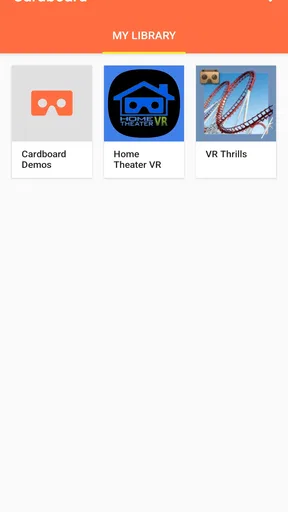
What really blew me away was the variety of experiences you can have with Cardboard. From breathtaking virtual tours of exotic locations to heart-racing roller coaster rides, the app offers a wide range of options. I found myself completely lost in a 360-degree video tour of the Louvre, feeling like I was actually strolling through those historic halls. The app’s ability to transport you to different worlds is truly impressive.
Worth Reading Before You Choose

Flipboard Shows What News Apps Must Do Beyond the Feed

Switching to Android Auto Means Rethinking Your Driving Routine

Google Calendar Makes a Crowded Week Easier to Manage

Ludo King Makes the Most of the Minutes Between Plans

Baby Panda World Brings Quick Play to Modern Phones, but Its Game Library Feels Busy

ESPN’s Live Game View Makes Following Close Games Easier
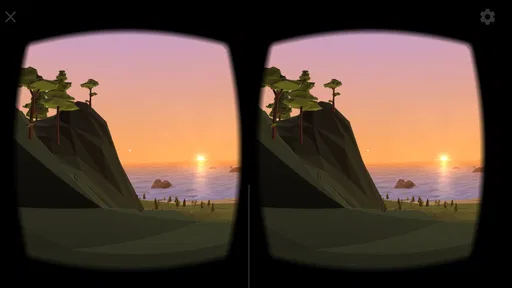
The strongest use case is visual exploration, especially when seeing a place from a fixed spot is more interesting than simply watching a flat clip. A virtual tour can make looking around part of the activity: I can turn to inspect the surroundings instead of following a single framed view. That is a modest but meaningful difference from watching the same kind of scene on a phone screen. It is also a good fit for sharing a quick experience with a curious friend, provided they are comfortable wearing the viewer and understand that it is an introductory form of VR.
A practical tip is to choose an experience for a specific reason rather than opening the app expecting an endless library to keep you occupied. For instance, a short tour works well when you have a few minutes and want a change from scrolling; a more intense ride is better saved for a moment when you can focus on it without needing to move around. Keeping the surroundings clear matters too. Since the viewer blocks much of your view of the room, I would sit or stand in a safe, stationary place and avoid walking while immersed.
Simple Interface, Maximum Fun
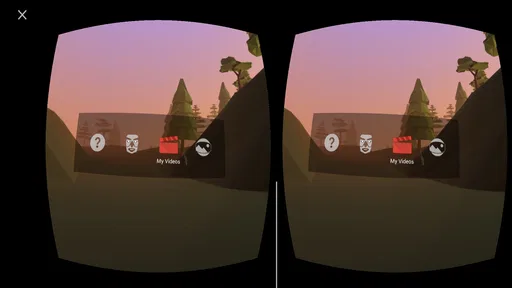
The user interface is straightforward and user-friendly, which is perfect for VR newbies. You don’t need to be a tech wizard to navigate through the app. Just a few taps, and you’re immersed in a new world. Plus, there’s no need to worry about any complicated setups or settings. It’s designed to be as simple as possible, so you can focus on enjoying the experience.
That simplicity is valuable when the app is being used as a demonstration. Someone who has never tried VR can spend less time figuring out menus and more time understanding the basic idea: the view changes as they look around. It also keeps the app approachable for people who do not want to learn a complicated system just to try one tour. I would not confuse a low learning curve with a promise that every phone-and-viewer combination will feel identical, though; the phone’s display and the viewer’s fit still shape what you see.
Compared with ordinary video or photo apps, Cardboard asks for more effort: you need a viewer, you place the phone inside it, and you give the experience your attention rather than casually glancing at a screen. The payoff is the ability to look around a scene in a more enveloping way. Compared with a dedicated VR headset, the phone-based approach is more accessible for a first experiment, but it is also a simpler, more limited setup. I would choose a dedicated device if VR were going to be a regular hobby; I would choose this app when the goal is simply to try the format.
People often wonder whether they need expensive equipment to begin. They do not need a high-end headset just to try this app, but they do need a smartphone and a suitable viewer for the viewer-based experience. Another sensible question is whether it suits a complete beginner: in my view, yes, because the interface is approachable and the basic interaction is easy to grasp. The bigger question is comfort, which is personal and can vary from one session to another.
Limitations to Consider
Of course, no app is perfect, and there are a few limitations to be aware of. The quality of the VR experience largely depends on the resolution of your smartphone. So, if your device is a bit older, you might not get the sharpest visuals. Also, prolonged use can be a bit uncomfortable, especially if you’re not used to wearing a viewer for extended periods. But let’s be real, for the price, these are minor gripes.
I would add a practical trade-off: a viewer-based experience is less convenient than watching a regular video. You have to prepare the phone and viewer, and you cannot use the phone normally while it is in place. That is no problem for a short, planned session, but it can make the app a poor choice when you want hands-free convenience without extra handling. If you already know that headsets make you uncomfortable, or if you want crisp, consistently detailed visuals, a flat screen may be the more enjoyable option.
Motion-heavy scenes deserve a little judgment. A roller-coaster-style experience can be exciting for some people, but the feeling may not suit everyone. I would start with a calmer tour, keep the first session brief, and stop if the experience feels unpleasant. That is not a flaw unique to this app; it is a sensible way to test whether this style of viewing works for you before committing to longer sessions or buying additional gear.
For Android users, the current version is 4.0 and the minimum operating system requirement is Android 10. The app has an Everyone content rating. Those details make it easier to decide whether it fits your device and household, but the viewer and the phone’s display remain central to the actual experience. On iOS, the app is also available, so the idea is not limited to Android users.
Its audience is substantial: Cardboard has over 10 million installs, with an average rating of 3.5 from around 163,000 ratings and about 5,100 reviews. I would read that middling average as a reminder to keep expectations grounded, not as a reason to dismiss the app outright. A free introductory tool can be worthwhile for someone with the right phone and viewer, while still feeling too basic to a person expecting a polished, long-term VR platform.
The app has been available since June 25, 2014, which also helps frame its role: I see it as an entry point to phone-based VR, not something I would choose instead of a modern dedicated headset for demanding use. Its value comes from lowering the barrier to a first experiment. It does not make the viewer unnecessary, and it cannot turn a phone screen into a high-end headset display.
Who will get the most out of it?
I would recommend trying it if you are curious about looking around a virtual scene, already have a suitable viewer, or want a simple way to introduce a friend or family member to phone-based VR. It can also suit someone who likes occasional visual tours but does not want to pay for an app just to find out whether the format appeals to them. Since the app is free, the main decision is about the hardware and the kind of experience you want, rather than an app price.
I would skip it if you want VR to be a regular, comfortable activity, expect consistently high visual detail, or do not want to use a viewer at all. In those cases, a standard video on a phone is easier, while a dedicated headset is a better match for someone seeking a more complete VR setup. The choice depends on whether you want a quick taste or a system you can rely on for frequent use.
Overall, Cardboard is a fantastic stepping stone into the world of virtual reality. It’s affordable, easy to use, and offers a taste of what VR has to offer without any major commitments. Whether you’re looking to explore new places, experience thrilling adventures, or simply want to see what all the VR buzz is about, this app is definitely worth checking out.
So, if you’re ready to dip your toes into virtual reality, give Cardboard a go. Trust me, you’ll be hooked!
Pros
- Immersive VR experiences with a simple setup.
- Compatible with a wide range of devices.
- Affordable entry into virtual reality.
- Easy to use with intuitive controls.
- Supports a variety of VR apps and games.
Cons
- Limited interactivity compared to advanced VR systems.
- May cause eye strain with prolonged use.
- Requires a powerful phone for optimal performance.
- Limited field of view compared to high-end VR headsets.
- Cardboard material can wear out over time.
FAQs for Cardboard
What is Cardboard, and how does it work?
Cardboard is a virtual reality (VR) platform developed by Google. It works by transforming your smartphone into a VR headset using a simple cardboard viewer. Users can experience immersive 3D environments by downloading compatible apps and games. The viewer has a slot to hold your phone, and lenses create the 3D effect when you look through the viewer.
Is my phone compatible with Cardboard?
Cardboard is designed to work with most Android and iOS smartphones. However, compatibility can depend on your phone’s screen size and operating system version. Generally, phones with screens between 4 and 6 inches and running Android 4.1 or iOS 8.0 and above should work. Always check the specific requirements of each Cardboard app.
How do I set up my Cardboard viewer?
Setting up your Cardboard viewer is straightforward. First, assemble the viewer by following the instructions that come with it. Once assembled, download the Google Cardboard app from the Play Store or App Store. Open the app, scan the QR code on your viewer to calibrate, and insert your phone into the viewer to start exploring VR experiences.
What types of experiences can I have with Cardboard?
Cardboard offers a wide range of experiences, from VR games and educational content to virtual tours and interactive storytelling. You can explore 360-degree videos, visit distant places with Google Earth, or dive into immersive games. The variety of apps available ensures there is something for everyone, whether for entertainment or learning.
Is using Cardboard safe for extended periods?
While Cardboard is generally safe to use, it’s recommended to take regular breaks to avoid eye strain or discomfort. Prolonged use can lead to dizziness or nausea, especially if you're not accustomed to VR. Always follow the app’s guidelines for use, and if you experience any discomfort, take a break and resume when you feel better.


